mitchellroe.dev
How to shrink a filesystem/partition/disk
NOTE: This article does not apply to LVM, only to filesystems on traditional partitions.
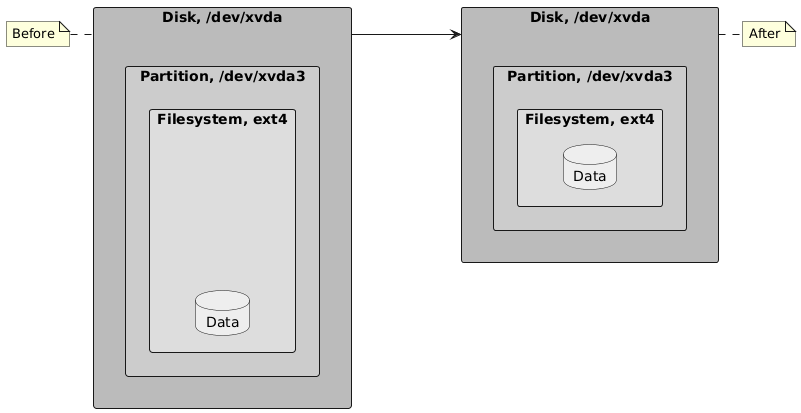
Let’s say we made a virtual machine with a 64 GiB disk and put everything in it. Simple, but not very flexible. What if we need more space? What if we later decide to use LVM? If we move all the space-consuming stuff out of that 64 GiB disk and leave only the operating system, then that’s a whole lot of wasted space.
We’ll take a 64 GiB disk and “shrink” it down to 32 GiB, one piece at a time.
For most of these operations, you will need to be booted into some sort of live disk like Clonezilla.
Step 0: Boot into Clonezilla
The root disk/partition cannot be in use for this process. The Clonezilla environment contains all the tools we need.
Step 1: Shrink the filesystem
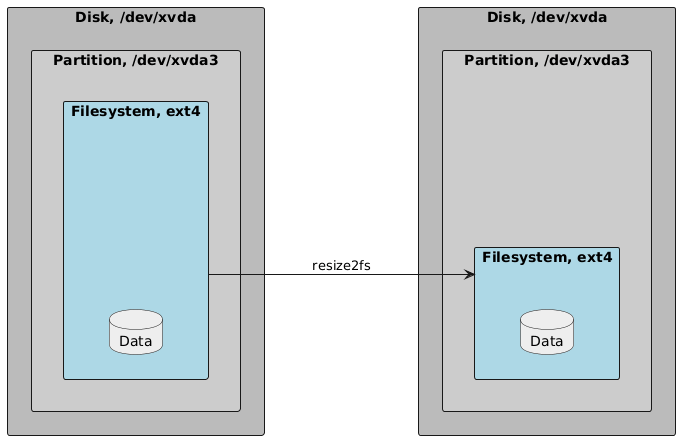
First, check the filesystem to ensure it does not have any errors, and optimize
as recommended using e2fsck. Then, resize the underlying filesystem to 30
GiB—slightly smaller than our disk will be (32 GiB). This is to give us enough
wiggle room so we can successfully copy the filesystem somewhere else. We will
later expand it to fill up the remaining space in our 32 GiB disk.
Let’s assume /dev/xvda3 is your root partition. You can run the following
commands to perform these operations. Accept all the recommended actions.
e2fsck -f /dev/xvda3
resize2fs /dev/xvda3 30G
Step 2: Shrink the partition

- Use
fdisk /dev/xvda. - Print out the current partition layout using
p.Take note of the start sector for/dev/xvda3. You will need it in a moment. - Delete
/dev/xvda3withd.Follow the prompts, and ensure you are deleting the correct partition. - Create a new partition with
n.- Use the same position as before (i.e. position
3). - For the start sector, provide the exact same start sector as before.
- For the size, specify
+31G. - Do not delete the existing ext4 filesystem signature if
fdiskasks you.
- Use the same position as before (i.e. position
- Write the changes.
- Run
e2fsck -fagainst the filesystem again, and accept any recommendations it has.
Step 3: Clone the disk
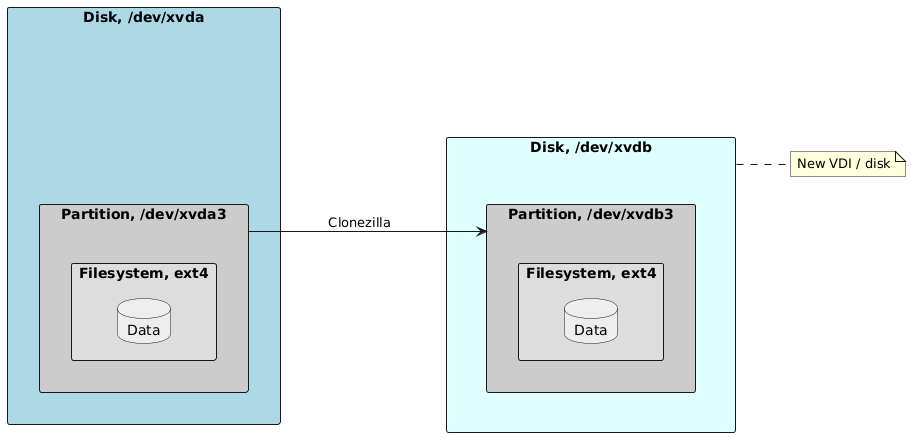
- Attach a new, empty 32 GiB disk to the machine.
- Start Clonezilla.
- Do a device-to-device clone in Expert mode (
disk_to_local_disk). - In the list of additional options, leave all the defaults checked, and
additionally enable the
-icdsoption, “Skip checking destination disk size before creating partition table”. - When the clone is completed, go back to a terminal and run
resize2fs /dev/xvda3. This will expand the filesystem to use up all the remaining space in the partition.
Step 4: Shuffle the disk positions (optional)
However it makes sense for you in your hypervisor, delete or disconnect the
original root disk, then move the new one into that position. Make sure your
/etc/fstab uses UUID’s rather than paths in /dev.